tar -xzf bausteinsicht_*_linux_amd64.tar.gz
sudo mv bausteinsicht /usr/local/bin/
Getting Started
This tutorial takes you from an empty directory to a living architecture model: you will model a system, sync it with draw.io, analyze it, version it, and drive it from an AI agent. Every command and every output shown here was executed against the current build — what you see is what you get.
What Bausteinsicht is — and why
Architecture documentation rots. The diagram in the wiki drifts from the system, and nobody trusts it after a few months. Bausteinsicht attacks that from a specific angle: it splits what the architecture is from how it looks.
Humans and LLMs want different things from architecture. You want a picture — boxes and lines you can take in at a glance and point at in a review. An LLM wants structured text — something it can read precisely, reason about, and edit without misunderstanding a diagram’s pixels. Bausteinsicht gives each side what it’s good with and keeps them in lockstep:
-
The source of truth is a JSONC model — a structured text file that lives in git, diffs cleanly, validates against a schema, and is trivially readable and writable by an LLM.
-
From that one model, Bausteinsicht generates draw.io diagrams — the visual, human-facing view, in a tool you already know.
-
Synchronization runs both ways: change the model and the diagrams follow; rename or redraw in draw.io and the model follows.
That bridge is the point. An LLM can confidently restructure the model — add a service, rewire a dependency, validate the result — because it works in text, not pixels. You review and arrange the diagram, where humans are fast. Neither side has to work in the other’s awkward medium, and because the model is the single source of truth, the picture can’t quietly drift from reality. The model stays LLM-readable; the diagrams stay human-readable; the two never disagree.
The rest of this tutorial walks that loop end to end — model it, see it in draw.io, arrange it once, then let model and diagram evolve together.
Installation
You need the bausteinsicht binary. Pick one of three ways:
From a release — download the archive for your platform from the releases page and unpack it:
With Go (1.25 or newer):
go install github.com/docToolchain/Bausteinsicht/cmd/bausteinsicht@latestFrom source:
git clone https://github.com/docToolchain/Bausteinsicht.git
cd Bausteinsicht
make build        # produces ./bausteinsicht
Verify the installation:
bausteinsicht --versionYou will also want the draw.io desktop app to view and edit the diagrams. Everything except opening diagrams and PNG/PDF export works without it.
Create your first project
Make an empty directory and initialize it:
mkdir my-architecture && cd my-architecture
bausteinsicht init
Initialized Bausteinsicht project: - architecture.jsonc - template.drawio - architecture.drawio - .bausteinsicht-sync Next steps: 1. Edit architecture.jsonc to define your architecture 2. Run 'bausteinsicht sync' to update the draw.io diagram 3. Open architecture.drawio in draw.io to arrange elements
Four files appear, each with a clear job:
| File | Purpose |
|---|---|
|
Your model. JSON with comments — the single source of truth. This is the file you edit, review, and commit. |
|
The generated diagrams. One draw.io page per view. You arrange and fine-tune here; structural truth stays in the model. |
|
The visual style library. One styled shape per element kind. Copy it, restyle it, pass it with |
|
Sync memory. A checksummed snapshot of the last synced state, so the next sync knows what changed on which side. Commit it together with the other files. |
The scaffolded model is not empty — it ships a complete example: an online shop with a customer, a back-office user, web and mobile frontends, an API with components, database, cache, message queue, and two external systems (payment provider, e-mail service). That gives you something real to explore before you replace it with your own architecture.
Look around
Validate the model:
bausteinsicht validateModel is valid.
Show a single element with everything the model knows about it:
bausteinsicht show customerElement: customer ================= Kind: actor Title: Customer Description: End user who browses products and places orders Relationships: → onlineshop.frontend "browses & orders" [uses] → onlineshop.mobile-app "browses & orders" [uses] Views: containers, context
Search across the whole model:
bausteinsicht find shopSearch results for "shop" (27 matches) ====================================== Elements (11): onlineshop [system ] "Online Shop" score: 6 onlineshop.api [container ] "REST API" technology: Go score: 3 ...
Open the diagrams
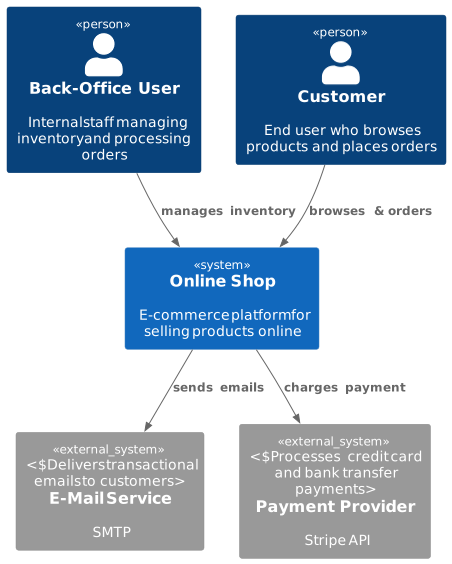
Open architecture.drawio in draw.io. You will find three pages — System Context, Container View, and API Components — each generated from a view defined in the model. Elements link to each other across pages: click a system in the context view to drill down into its container view; a generated back-navigation button takes you up again.
The System Context view of the sample model looks like this — generated entirely from the JSONC, no manual drawing:
Where you are now
You have a valid model, generated diagrams, and the tools to inspect both. Next, you will change the model and watch the diagrams follow.
Continue with 2. Modeling Your Architecture.
Feedback
Was this page helpful?
Glad to hear it! Please tell us how we can improve.
Sorry to hear that. Please tell us how we can improve.