The draw.io Round-Trip
This is the heart of Bausteinsicht: the model and the diagrams stay in sync — in both directions.
Forward: model → draw.io
Every bausteinsicht sync compares the model against the last synced state and applies the difference to the diagram:
-
New elements are added to every view that includes them, placed by the auto-layout (actors on top, then systems, containers, datastores — following your specification order).
-
Changed titles, descriptions, and technologies update the existing shapes without touching your manual arrangement.
-
Elements removed from the model disappear from the diagram.
Your hand-tuned positions survive. Sync moves nothing you have arranged; it only places what is new.
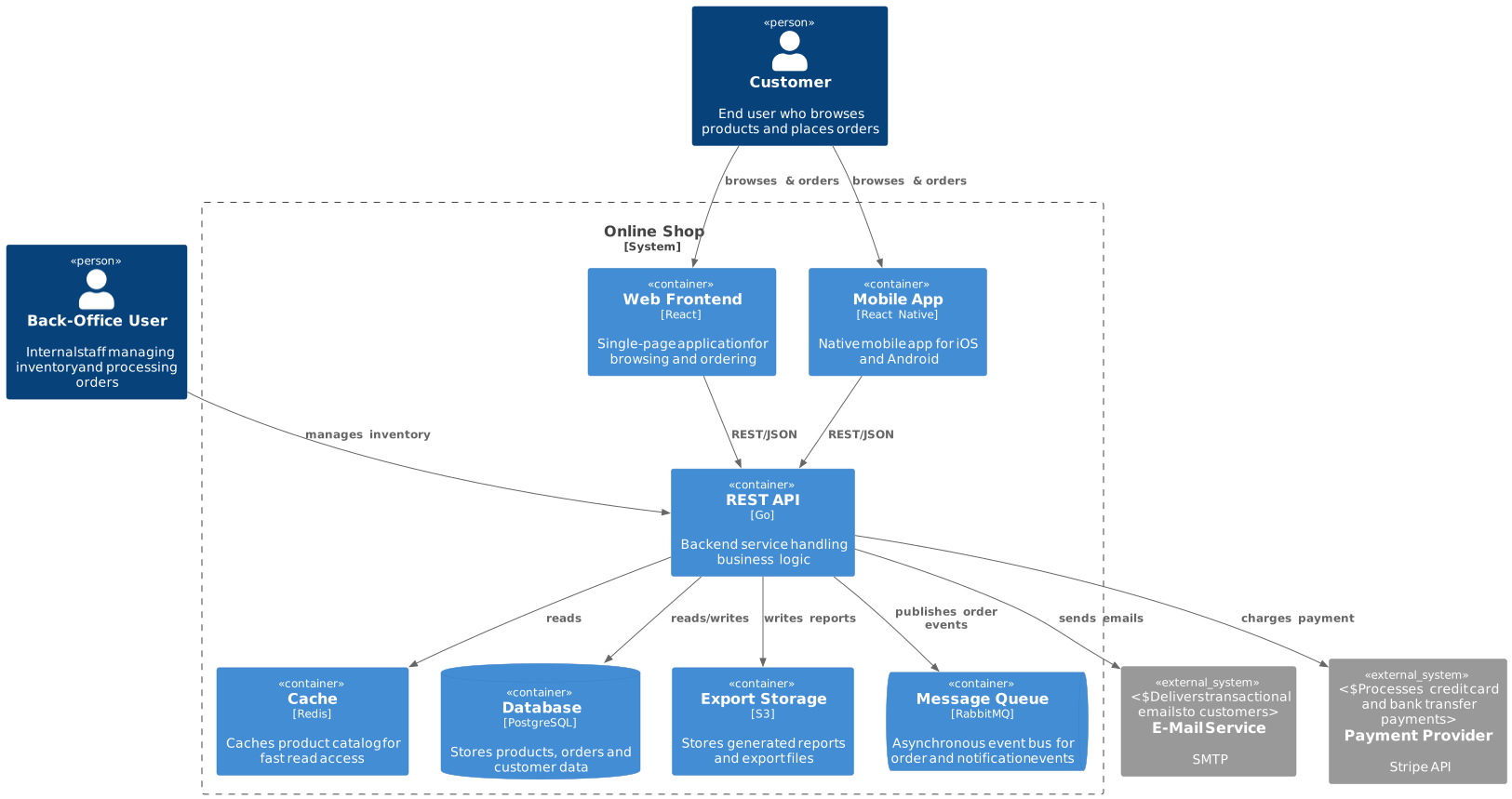
The Container View drills one level deeper — the containers inside the Online Shop boundary, with the external systems they talk to. This, too, comes straight from the model:
Working in draw.io
The generated architecture.drawio is a normal draw.io file — but a few things are specific to how Bausteinsicht builds it. This is where you spend your "human" time, so it’s worth knowing the moves.
Navigating
Each view is its own page — use the page tabs along the bottom of the draw.io window to switch between System Context, Container View, and so on. You also navigate by drilling down: click a system in the context view and draw.io follows the generated link to that system’s container page; a generated back button returns you to the parent. Browsing the architecture is mostly clicking, like an interactive C4 model.
Selecting and moving an element
Here’s the one thing that trips people up. Each element is a draw.io container: the shape plus its title and description as child cells. It is not a locked group, so a single click does not always grab "the whole box":
-
Click the shape body (the colored area, away from the text) → selects the whole element. Drag it and the title/description move with it.
-
Click directly on the title or description text → selects just that text cell. Good for editing, not for moving the element.
-
The reliable way to grab a complete element — especially a small one whose text covers most of the body — is a rubber-band selection: press on empty canvas and drag a box around the element. To reposition a whole row at once, rubber-band around all of them and drag together.
|
Tip
|
if you grabbed only the label, press Escape and try again on the shape body, or just rubber-band around the element.
|
Editing text (this flows back to the model)
Double-click an element’s title and type to rename it; double-click the description to edit it. On the next sync these travel back into the model (see Reverse, below). Editing an element’s position or size changes nothing in the model — layout is yours to keep.
Lay it out once
New elements arrive stacked by the auto-layout and marked (a red dashed border) so you can spot them. You arrange them by hand the first time — and only the first time. After that, sync never moves what you have placed; it only positions the next new element. So manual layout is a one-time cost per element, not a tax you pay on every sync. (If you ever want to start the arrangement over, sync --relayout re-runs the auto-layout — see Layout control below.)
Reverse: draw.io → model
Open architecture.drawio, double-click the "Search Service" title, and rename it to "Product Search". Save, then:
bausteinsicht syncReverse (draw.io → model): 0 added, 1 updated, 0 deleted
Look into architecture.jsonc:
"searchservice": {
  "kind": "container",
  "title": "Product Search",
  ...
}
The rename traveled back into the model. Reverse sync covers the text people naturally edit in a diagram — titles, descriptions, technology labels — and newly drawn shapes and connectors. Structural truth (hierarchy, kinds, views) stays model-driven.
You can even create elements in draw.io: draw a shape, give it a title, sync — it appears in the model with a sanitized ID and the alphabetically first kind from your specification, ready for you to adjust.
When both sides change: the model wins
If the same element changed in the model and in the diagram since the last sync, Bausteinsicht resolves the conflict deterministically: the model wins. You get a warning showing both values and the last-synced value, the model value goes into the diagram, and nothing is lost silently. The rule of thumb: treat the model as the source of truth, the diagram as the place for layout and quick text fixes.
Watch mode: continuous sync
Instead of running sync after every change:
bausteinsicht watchWatching architecture.jsonc and architecture.drawio...
Now keep architecture.jsonc open in your editor and architecture.drawio in draw.io. Save on either side; the other follows within a moment (changes are debounced for 300 ms). Stop with Ctrl+C.
|
Note
|
draw.io does not auto-reload a changed file — use File → Synchronize (or reopen) after the model side changed. |
Styling with templates
Visual styles do not live in code — they live in template.drawio. Each shape in that file carries a bausteinsicht_template attribute naming the element kind it styles. When sync creates a new element, it clones the template shape for that kind: colors, fonts, geometry, everything.
To restyle your architecture:
-
Open
template.drawioin draw.io. -
Restyle the shape of the kind you care about (say, make containers green).
-
Sync — the local
template.drawionext to your model is picked up automatically:
bausteinsicht syncTemplate resolution follows a clear precedence: an explicit --template <path> wins, otherwise the template.drawio next to the model is used, otherwise a built-in default. So you only need --template to point at a template in a different location.
Templates only affect newly created shapes. Existing shapes keep their look — restyle them in draw.io directly, or remove them from the diagram and sync again.
See the Template Guide for the full attribute reference and advanced styling (custom shapes, per-kind fonts and sizing).
Layout control
Each view can choose its layout in the model:
"context": {
  "title": "System Context",
  "include": ["customer", "onlineshop"],
  "layout": "layered"     // layered (default) | grid | none
}-
layered— rows by element kind, in specification order; related elements grouped. -
grid— a simple grid, useful for overview pages. -
none— sync places nothing automatically; you own the layout completely.
If a page has grown messy, regenerate its layout once:
bausteinsicht sync --relayoutThis re-places all elements of the synced views — deliberately destructive to manual arrangement, so use it when you want a fresh start.
Drill-down navigation
Views form a hierarchy through their scope: a view scoped to onlineshop shows its children inside the system boundary. Sync generates page links between the levels — click a system in the context view to jump to its container view, and use the generated back-button to return. The result reads like an interactive C4 model inside plain draw.io.
Continue with 4. Sharing: Exports.
Feedback
Was this page helpful?
Glad to hear it! Please tell us how we can improve.
Sorry to hear that. Please tell us how we can improve.